Fleet and Integrations roles and privileges
Use Kibana roles and privileges to grant users access to Fleet and Integrations. For each of these features, select the type of access you want to allow:
- All: Users have full access to the feature, which includes performing all available actions and managing configuration.
- Read: Users can view the feature, but can't perform any actions or manage configuration.
- None: Users can't access or view the feature.
In Fleet, Read access for Agents also allows requesting agent diagnostics.
You can take advantage of these privilege settings by:
To configure access at a more granular level, select a custom set of privileges for individual Fleet features:
Some actions, such as adding an integration to an agent policy, require privileges for both Fleet and Integrations. Refer to Privileges for integrations and integration policies.
Elasticsearch comes with built-in roles that include default privileges.
editor-
The built-in
editorrole grants these privileges, supporting full read-write access to Fleet and Integrations:- Fleet:
all - Integrations:
all
- Fleet:
viewer-
The built-in
viewerrole grants these privileges, supporting read-only access to Fleet and Integrations:- Fleet:
read - Integrations:
read
- Fleet:
You can also create a new role that can be assigned to a user to grant more specific levels of access to Fleet and Integrations.
In Serverless projects, create a custom role as described in Serverless project custom roles, then follow steps 4 to 6 to select spaces and set the Fleet and Integrations privileges.
To create a new role with access to Fleet and Integrations:
Go to the Roles management page in the navigation menu or use the global search field.
Select Create role, then enter a Role name.
Leave the Elasticsearch settings at their defaults, or refer to Security privileges for descriptions of the available settings.
In the Kibana section, select Assign to space. In the Select spaces field, select the spaces where the role needs access to Fleet and Integrations.
-
You can grant Fleet privileges in specific spaces. For how agent policies and integration assets behave across spaces, refer to Using Spaces with Fleet. -
Fleet privileges apply to all spaces, so select All Spaces.
-
Expand the Management section, then choose the access level that you'd like the role to have with respect to Fleet and integrations:
To grant the role full access to use and manage Fleet and integrations, set both the Fleet and Integrations privileges to
All.To create a read-only user for Fleet and Integrations, set both the Fleet and Integrations privileges to
Read.If you'd like to define more specialized access to Fleet based on individual components, set Fleet to
AllorRead, then expand the Fleet menu and enable Customize sub-feature privileges.The sub-feature privileges you select replace the general Fleet privilege and determine which Fleet UI features the role can access. For details, refer to Customize sub-feature privileges for Fleet.
Customizing sub-feature privileges is a subscription feature.
To let the role add integrations to agent policies or edit integration policies, also set Integrations to
All. Refer to Privileges for integrations and integration policies.
Select Assign role, then select Create role.
After you've created a new role, you can assign it to any Elasticsearch user. You can edit the role at any time by returning to the Roles page in Kibana.
You have more granular control when creating a new role or editing it. This is useful when people in your organization access Fleet for different purposes, and you need to fine-tune the components that they can view and the actions that they can perform.
The Fleet UI varies depending on the privileges granted to the role.
Set Read access for Elastic Agents only:
- Agents:
Read - Agent policies:
None - Settings:
None
With these privileges, the Fleet UI shows only the Agents and Data streams tabs. The Agent policies, Enrollment tokens, Uninstall tokens, and Settings tabs are unavailable.
The set of actions available for an agent are limited to viewing the agent and requesting a diagnostics bundle.
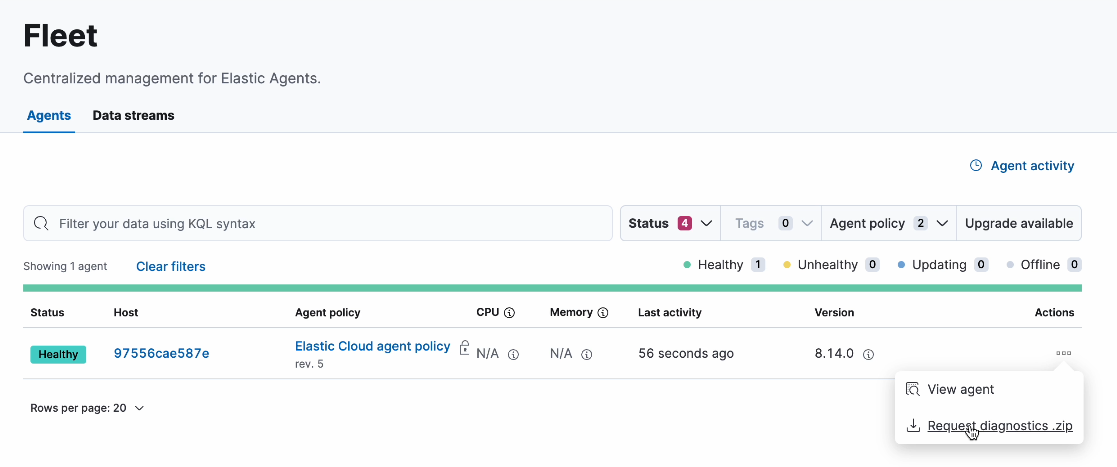
Change the Agents privilege to All to enable the role to perform the full set of available actions on Elastic Agents.
Set Read access for Elastic Agents, agent policies, and Fleet settings:
- Agents:
Read - Agent policies:
Read - Settings:
Read
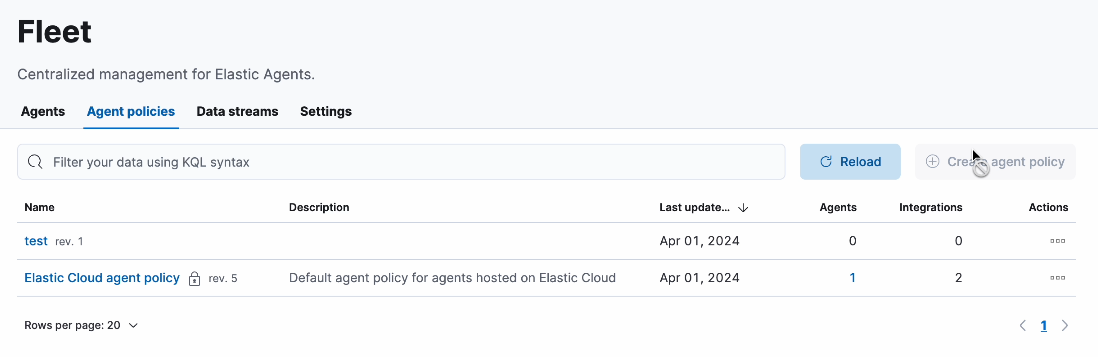
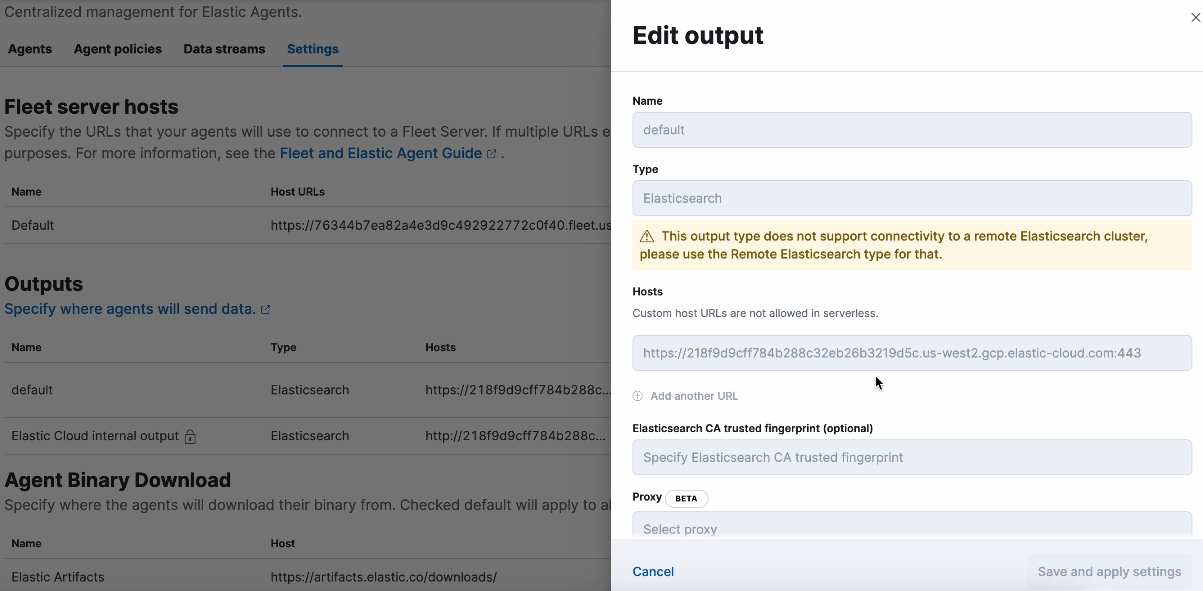
With these privileges, the Fleet UI shows the Agents, Agent policies, Data streams, and Settings tabs. The Enrollment tokens and Uninstall tokens tabs are unavailable.
The set of actions available for an agent are limited to viewing the agent and requesting a diagnostics bundle.
You can view agent policies, but you cannot create a new policy.
You can view Fleet settings, but they are not editable.
Set All access for Elastic Agents only:
- Agents:
All - Agent policies:
Read - Settings:
Read
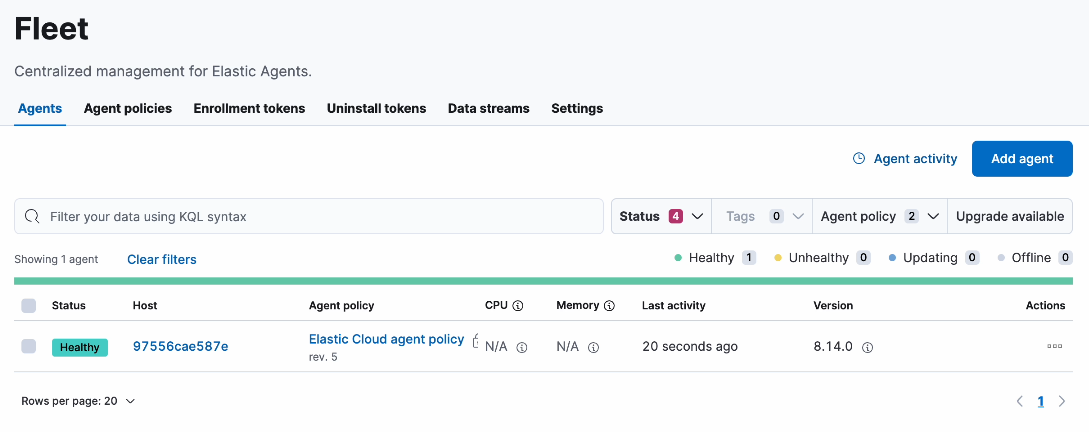
With these privileges, the Fleet UI shows all tabs.
All Elastic Agent actions can be performed and new agents can be created. Enrollment tokens and uninstall tokens are both available. Access to Fleet settings is still read-only.
To add a Fleet Server, also set the Agent policies and Settings privileges to All.
This table shows the set of available actions for the read or all privilege for each Fleet feature.
| Component | read privilege |
all privilege |
|---|---|---|
| Agents | View-only access to Elastic Agents, including: * View a list of all agents and their status * Request agent diagnostic packages |
Full access to manage Elastic Agents, including: * Assign agents to a policy * Perform upgrades * Migrate agents to a new cluster * Unenroll agents from Fleet * Create and revoke enrollment tokens |
| Agent policies | View-only access, including: * Agent policies and settings * The integrations associated with a policy, if the role also has read or all for Integrations |
Full access to manage agent policies, including: * Create a policy * Edit or delete a policy * Change the output of a policy * Configure agent monitoring * Set the inactivity timeout If the role also has all for Integrations:* Add an integration to a policy * Edit or delete an integration policy * Copy a policy |
| Settings | View-only access, including: * Configured Fleet hosts * Fleet output settings * The location to download agent binaries |
Full access to manage Fleet settings, including: * Editing hosts * Adding or editing outputs * Update the location for downloading agent binaries |
| Generate reports
|
Not available. This component has an all privilege only. |
Export the Elastic Agents list to a CSV file from the Agents tab. The role also needs read or all for Agents. |
When you add an integration to an agent policy, Fleet creates an integration policy that stores the integration's settings. Viewing or managing integration policies, and installing integration packages, requires privileges for both Fleet Agent policies and Integrations. If you don't customize Fleet sub-feature privileges, the Fleet privilege sets the Agent policies access level.
| Action | Fleet Agent policies privilege | Integrations privilege |
|---|---|---|
| Browse integrations and view their details | Not required | read or all |
| View integration policies | read or all |
read or all |
| Add integrations to agent policies, and edit, upgrade, or delete integration policies | all |
all |
| Install, upgrade, uninstall, or upload integration packages | all |
all |
The Integrations feature has no sub-feature privileges. A role that can edit integration policies can also install, upgrade, and uninstall integration packages.