Run Discover and Dashboards queries in the background
If a query takes a long time to run, you can send it to the background and keep working in Kibana. When the search finishes, you can open its results from Discover or Dashboards, or manage all your background searches from one list.
Background search is a feature introduced in version 9.2. It replaces the deprecated Search sessions feature. If you used search sessions in an earlier version and upgrade to 9.2, your search sessions aren't lost and become background searches.
The background searches that you run are personal and only visible by you. To use this feature, you must have the following minimum permissions:
To send searches to the background, and to view and interact with the list of background searches from the Discover and Dashboards apps, you need permissions for Discover and Dashboard, and for the Store Background search sub-feature. The same sub-feature gives you access to the Background Search page in Stack Management.
In these versions, this feature is named Search sessions.
- To save a session, you must have permissions for Discover and Dashboard, and the Store Search Sessions sub-feature.
- To view and restore a saved session, you must have access to Stack Management and the same Store Search Sessions sub-feature.
If you don't see the Send to background button, an administrator might need to turn the feature on. Refer to Enable background searches.
This feature is enabled by default.
This feature is turned off by default. You can enable background searches by setting data.search.sessions.enabled to true in the kibana.yml configuration file.
If you already set data.search.sessions.enabled to true before you upgrade, the setting stays in effect and background searches remain enabled.
This feature is named Search sessions and is turned off by default. If you already enabled it in a previous version, the setting stays in effect after an upgrade. You can enable search sessions by setting data.search.sessions.enabled to true in the kibana.yml configuration file.
You can send a search to the background only while it's running. Before the search starts, and after it completes, the Send to background button is unavailable.
Write or edit the query.
Start the query:
- In ES|QL mode, select Search. In 9.2 and 9.3, select Run, or Refresh if the query hasn't changed.
- In classic mode, select Update, or Refresh if the query hasn't changed.
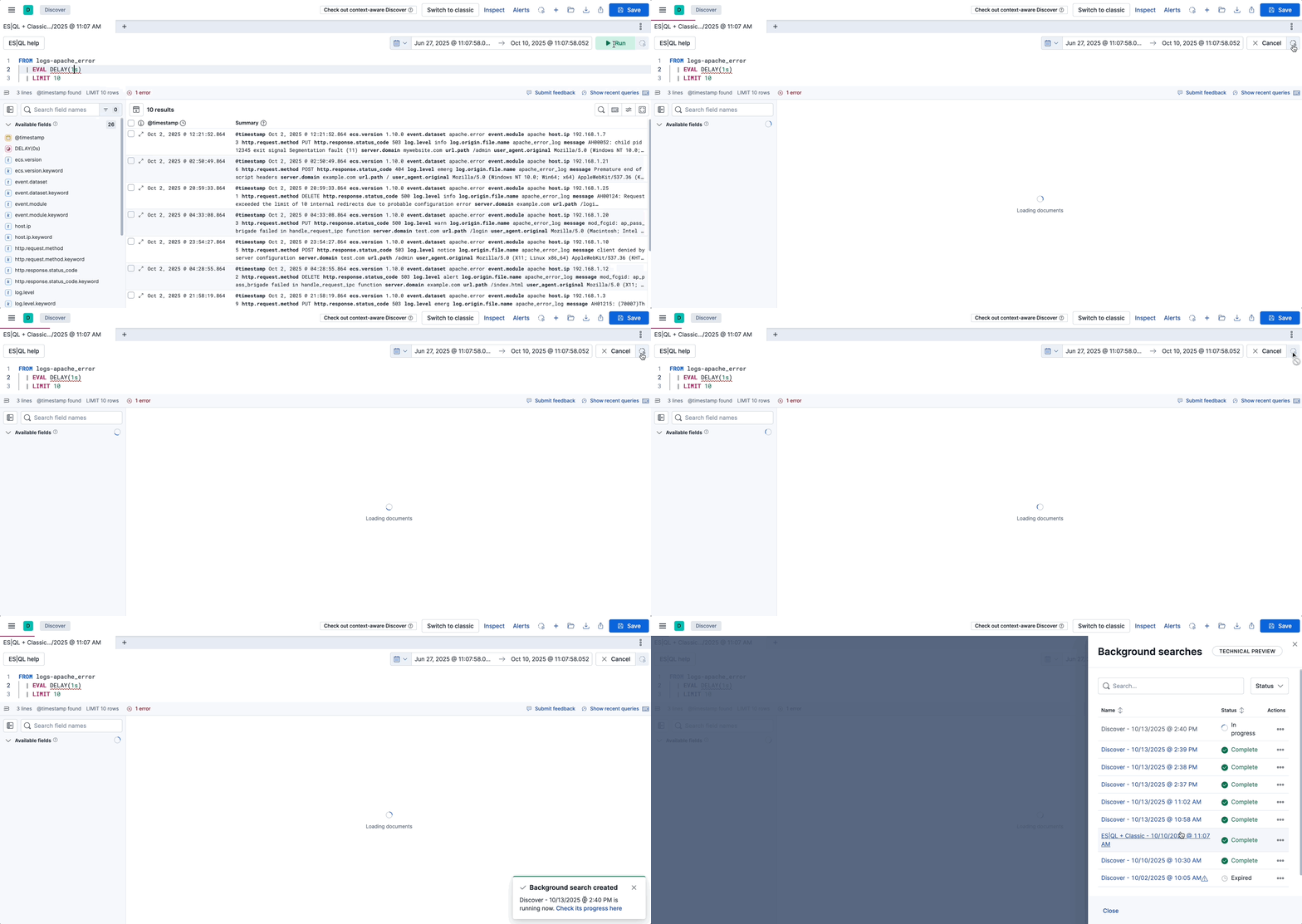
While the search runs, the Send to background button becomes available next to Cancel.
Select Send to background. The search is sent to the background and added to the queue of background searches.
Result: The search runs in the background and appears in your list of background searches. You can resume your other tasks, for example start a new search, navigate to a different application, or close the browser.
When the search completes, a notification informs you, even if you have navigated to a different application. Selecting it opens the completed search results directly.
Background searches expire after 7 days. Beyond that period, you must run the search again. You can change this default value by editing the data.search.sessions.defaultExpiration setting.
Your background searches stay in a list until they expire. From the list, you can reopen a search to see its results, inspect or rename it, extend how long it's kept, or delete it.
Open your list of background searches using one of the following methods:
Once a background search is sent to the background, a notification appears to tell you, with a link to open the list of background searches.
If you miss the notification or need to access this list at any time, go to Discover or Dashboards and select the Background searches button in the application menu. This option is only available from version 9.2.
TipFrom Discover, you can only view Discover background searches. And from Dashboards, you can only see Dashboards background searches.
In Stack Management, open Background Search.
Find the background search that you want to interact with using the search or status filter options.
- To open it to view its results and continue your explorations, select its name. Relative dates are converted to absolute dates. In Discover, the search opens in a new tab, which counts toward the 25-tab limit.
- To rename it, select the More actions button, then select Edit name. By default, background searches get default names that indicate their execution date and time.
- To extend its current expiration date, select the
More actions button, then select Extend. The new expiration is one more
data.search.sessions.defaultExpirationperiod, which is 7 days by default. You can extend a search only while it's running or after it completes. - To inspect the details of a background search, select
More actions, then select
Inspect. A flyout opens showing the configuration for that background search.
-
If you inspect a search from the Background searches flyout in Discover or Dashboards, the details open as a child flyout.
-
- To delete it, select the More actions button, then select Delete.
Result: The list reflects the change you made, or the search opens in Discover or Dashboards.
Administrators can also see running background searches on the Query activity page. While you use background search to manage your own long-running searches, Query activity provides administrators with a cluster-wide view of all running queries, with the ability to cancel any of them.
Some visualization features don't fully support background searches. When you restore a dashboard, panels that use those features don't load right away. They send additional data requests, which can take a while, and the Your background search is still running warning appears. You can wait for the queries to finish, or come back to the dashboard later.
A panel behaves like this if it uses one of the following features:
Lens
- A top values dimension with an enabled Group other values as "Other" setting. This is configurable in the Advanced section of the dimension.
- An intervals dimension.
Aggregation-based visualizations
- A terms aggregation with an enabled Group other values in separate bucket setting.
- A histogram aggregation.
Maps
- Layers using joins, blended layers, or tracks layers.
- How to query in Discover's ES|QL mode: Write the queries you send to the background.