Inspect grouped STATS results in Discover
If you group results with STATS BY, you can look inside each group to see the documents behind a count or an average. When a query groups by one field, Discover shows each group as a row that you can expand, instead of a flat table with one row per group. Each row stands for one unique value of the grouping field, which is the field after BY.
- Make sure Discover is in ES|QL mode. Classic mode doesn't support this functionality. To switch, refer to Switch to Discover's ES|QL mode.
- If you're new to ES|QL in Discover, start with Get started with ES|QL in Discover.
- To get expandable groups, your query needs to group by a single field, or by a single
CATEGORIZEcall on a field. If your query has more than oneSTATScommand, Discover uses the last one. TheCATEGORIZEfunction requires a Platinum or Enterprise subscription or an active trial. - These queries keep the standard flat results table:
- Queries that group by more than one field, for example
BY clientip, extension.keyword. - Queries that use other grouping functions, such as
BUCKETorTBUCKET, or that nest a function insideCATEGORIZE. - Queries where a later
KEEPcommand drops the grouping field. - Queries whose data source is a subquery.
-
Queries that use TS_INFOorMETRICS_INFO. Their rows describe metrics and have no documents to expand.
- Queries that group by more than one field, for example
In Discover, in ES|QL mode, enter a
STATS BYquery with a single grouping field. For example:FROM kibana_sample_data_logs | STATS Visits = COUNT(*), AvgBytes = AVG(bytes) BY geo.dest | SORT Visits DESCSelect Search.
Result: The table lists one row per group. The results count reports the number of groups instead of the number of documents.
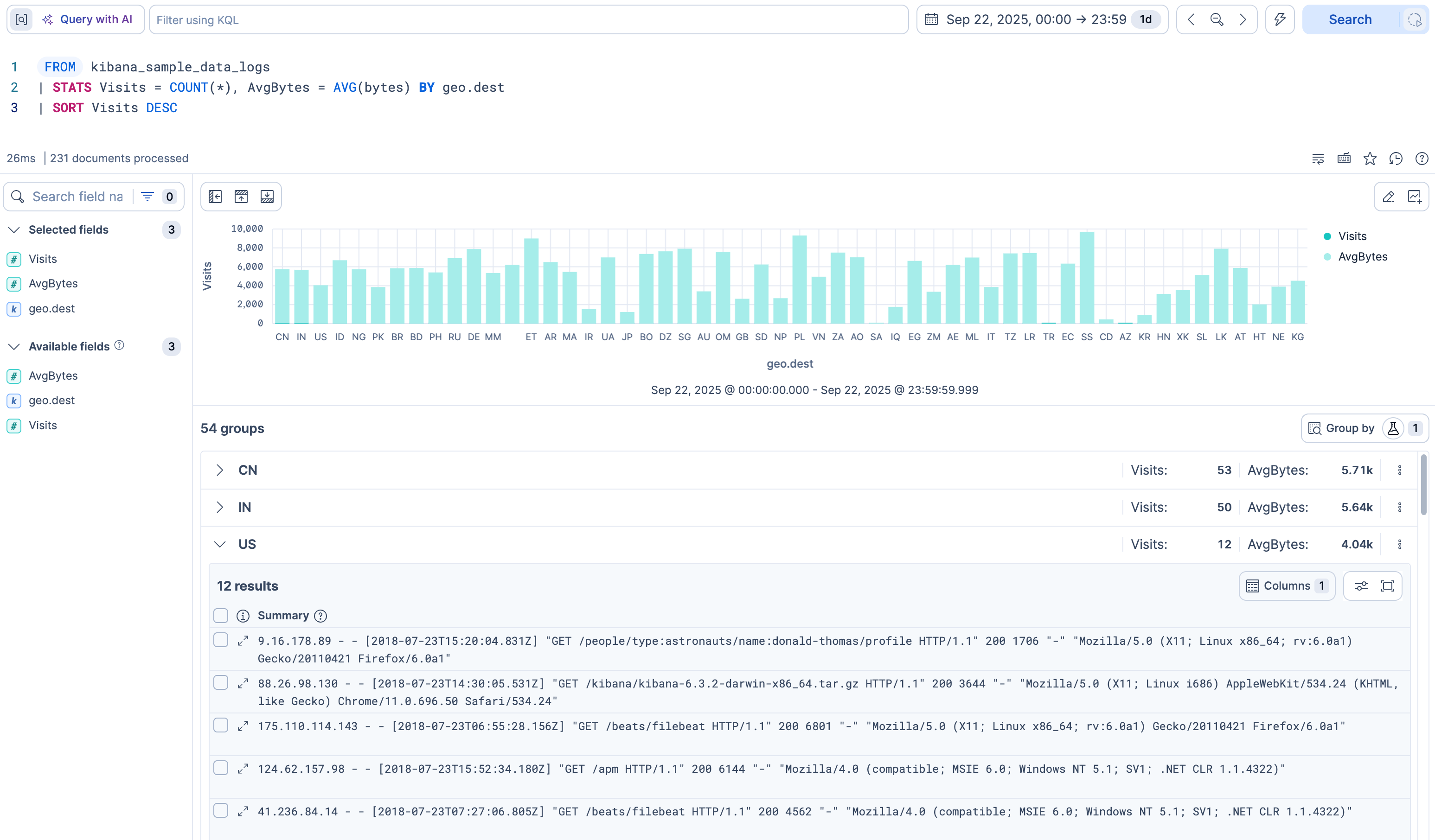
Expand a row to inspect the underlying documents.
On large data sets, you can get faster, estimated results by turning on Fast mode. Refer to Use ES|QL in Kibana > Get faster results with approximate STATS.
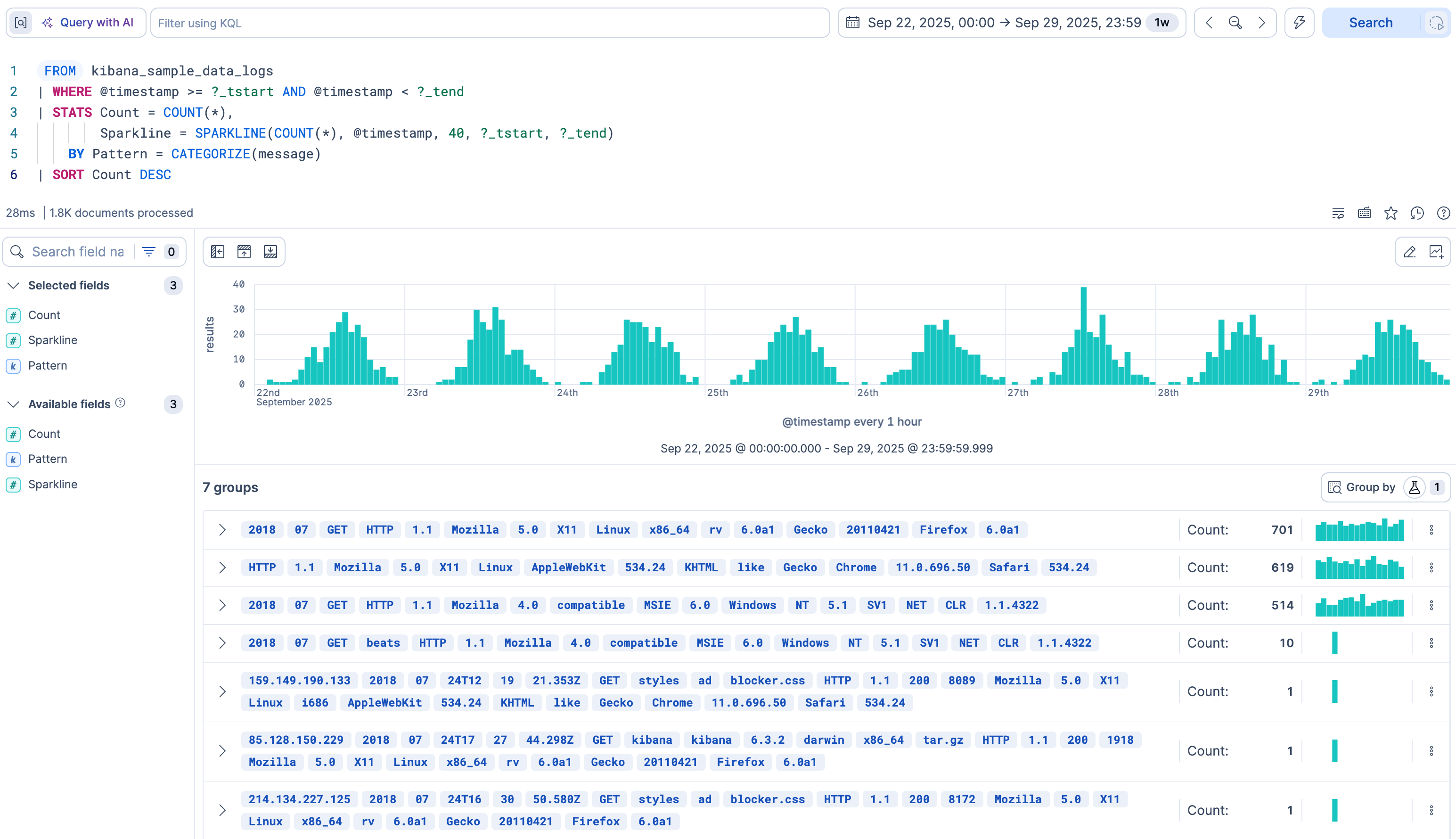
When the grouping field uses CATEGORIZE, each row title shows a detected pattern, which is a group of similar messages, with the changing words highlighted. This helps you scan repeated message structures at a glance.
FROM kibana_sample_data_logs
| STATS Count = COUNT(*) BY Pattern = CATEGORIZE(message)
| SORT Count DESC
To run a pattern analysis without writing a query, refer to Run a pattern analysis on your log data in Discover.
When the query also computes a SPARKLINE over time, Discover renders a sparkline, which is a small trend chart, next to the row aggregates. For example, the following query categorizes log messages and renders a sparkline for each pattern:
FROM kibana_sample_data_logs
| WHERE @timestamp >= ?_tstart AND @timestamp < ?_tend
| STATS Count = COUNT(*),
        Sparkline = SPARKLINE(COUNT(*), @timestamp, 40, ?_tstart, ?_tend)
    BY Pattern = CATEGORIZE(message)
| SORT Count DESC
On larger data sets, add a SAMPLE command before STATS to keep the categorization fast. Because SAMPLE 0.001 keeps about one document in a thousand, divide COUNT(*) by the same fraction, Count = COUNT(*) / 0.001, so the counts stay representative.
Select the actions button on any group row to:
- Copy to clipboard: Copy the group's value.
- Filter in: Add a
WHEREclause before theSTATScommand that keeps only documents matching this group. - Filter out: Add a
WHEREclause before theSTATScommand that excludes documents matching this group. - Open in new tab: Open the documents in this group in a new Discover tab, with a query scoped to that group.
If the grouping field isn't filterable, Filter in and Filter out are unavailable.
If you prefer the flat results table, you can switch grouped results off. When grouped results are active, Discover replaces the regular results table toolbar with a Group by button that carries a
badge and shows the number of active groupings. Discover preselects the grouping field from your STATS BY clause. To go back to the flat results table and the regular toolbar, open the Group by menu and select none. The Group by button stays in the toolbar of the flat table. To bring the grouping back, open the menu again and select the grouping field.